Quick Start: Install Voyant API with Ubuntu
Install and launch the Voyant API on your Linux system.
Prerequisites:
- Ubuntu 22.04 or 24.04 LTS
- Administrative
(sudo)access
1. Install Voyant API
1.1. Installation
Download voyant-api-debian-*.tar.gz from voyant-sdk/releases/latest.
Now extract and install the Debian packages with the command line.
$ cd Downloads/   # or location of downloaded tarball
$ tar -xzf voyant-api-debian-*.tar.gz --one-top-level
$ cd voyant-api-debian-*/
$ sudo apt update && sudo apt install ./voyant-api*$(dpkg --print-architecture).deb
1.2. Verify
Verify the install by running
$ voyant_visualizer
and confirm that the application main window appears.
2. Connect to Carbon 30 Sensor
Your host machine needs a static IP address set to the same subnet as the sensor. This section details how to configure the IP for your Linux system. Do this process once per machine.
Use the Network Manager GUI.
These configuration settings are also possible in command line with analogous instructions.
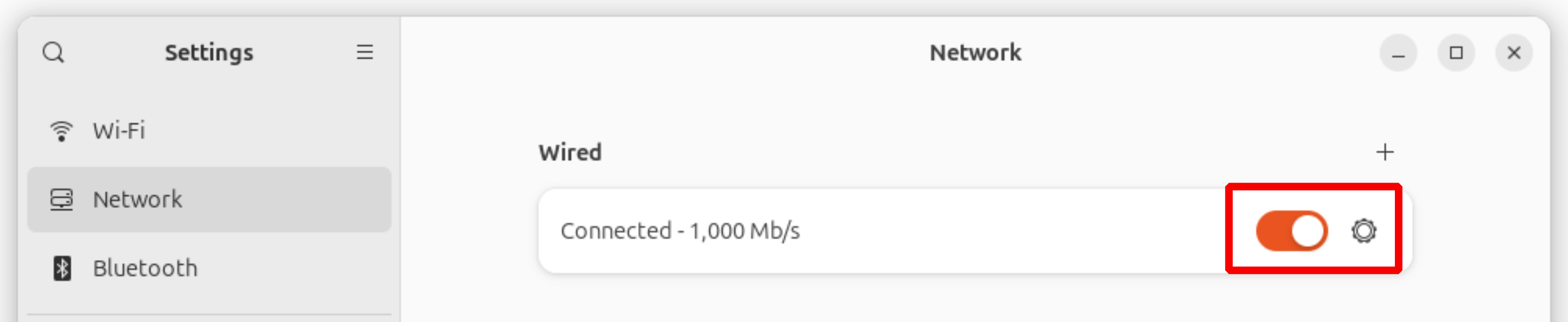
1. Open Settings → Network → Wired (or click the network icon in the top bar).
Note: If using Ubuntu 22.04, the Ethernet connection may not show on the Network Settings page after initial connection. In this case, see the solution in our Connections Troubleshooting Guide before resuming with this procedure.
2. Click the gear icon ⚙️ next to your Ethernet Connection:
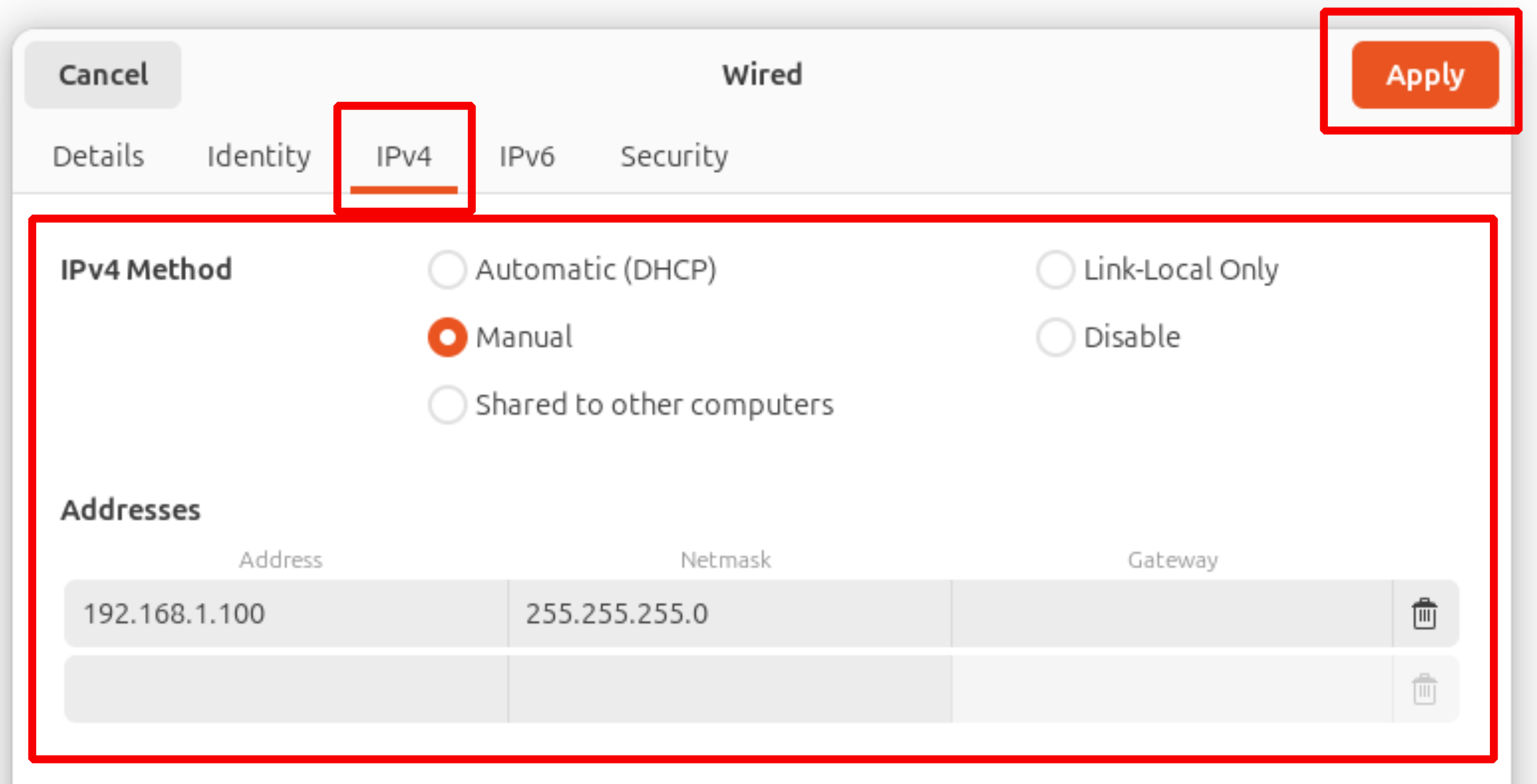
3. Go to the IPv4 tab.
4. Set method to Manual and enter:
- Address:
192.168.1.100 - Netmask:
255.255.255.0 - Gateway: Leave blank
5. Click Apply, then toggle the connection off and back on:
3. Start Carbon 30
You are now ready to start your Carbon 30 sensor and begin collecting point cloud data.
Run $ voyant_visualizer from a terminal to launch the Voyant Visualizer.
See the Verify Sensor Connection page for information on connecting to your Carbon 30 sensor and streaming data.