Voyant Visualizer Guide
View, record, replay, and interact with point clouds from your Carbon 30 sensor.
The Voyant Visualizer is the primary tool for viewing and interacting with point cloud data from your Carbon 30 LiDAR sensor.
Using the Visualizer, you can:
- Stream and record live data from a connected Voyant sensor
- Load and replay recorded point cloud datasets
- Explore 3D point clouds
- Analyze motion, velocity, range, and signal quality
All from a single interface.
This guide details the steps to interact with the Voyant Visualizer for live or recorded data.
Note: The Voyant Visualizer replaces Foxglove for most workflows. For ROS users, see the Foxglove Visualization Guide.
Prerequisites
- Completion of the Connection Verification of the Carbon 30 sensor in the Quick Start procedure
- Confirmed access to the Voyant Visualizer, Voyant-provided datasets, and the sensor’s data stream
This guide picks up once you have data on screen (from the Verify Connection step). It covers loading data, working with a live sensor (calibration, SDL, recording, and health), and viewing and interacting with the point cloud — the last of which works the same for live or recorded data.
Opening the Visualizer
Installing the Voyant API adds a Voyant Visualizer entry to your application menu — search for it and open it (or double-click). On Linux you can pin it to your favorites / sidebar for one-click access. You can also launch it from a terminal with voyant_visualizer; see the tool reference for command-line options.
No supported GPU (e.g. a Raspberry Pi 5)? The Visualizer may fail to open. Force software (CPU) rendering by launching from a terminal with
LIBGL_ALWAYS_SOFTWARE=1 voyant_visualizer— see software rendering on the install page. Expect heavy CPU use; a machine with a GPU is strongly preferred.
Loading Data
The Data Source panel at the top of the left-hand control panel selects between two sources:
- Open File — play back a recorded
.vyntdataset. Opening a recording made before v1.0.0 brings up a Legacy Recording prompt offering to convert it to the current format (the original file is kept — seevoyant_recording_migrate). - Open Connection — stream from a live Carbon 30 sensor.
You set both up during Verify Connection, which stays the reference for the sample datasets, connection settings, and confirming a healthy link. Switch sources here at any time.
When playing back a recording, use the Playback Controls panel to play, pause, restart, adjust the rate, loop, and scrub through frames. The Space key toggles play/pause. To see the invalid points a recording holds, use Show invalid points in the Rendering panel.
Working with a Live Sensor
With a Carbon 30 connected, extra panels appear in the Control Panel for calibrating and configuring the sensor, recording its stream, and monitoring its health. Each is covered below; to explore the data itself, jump to View and Interact.
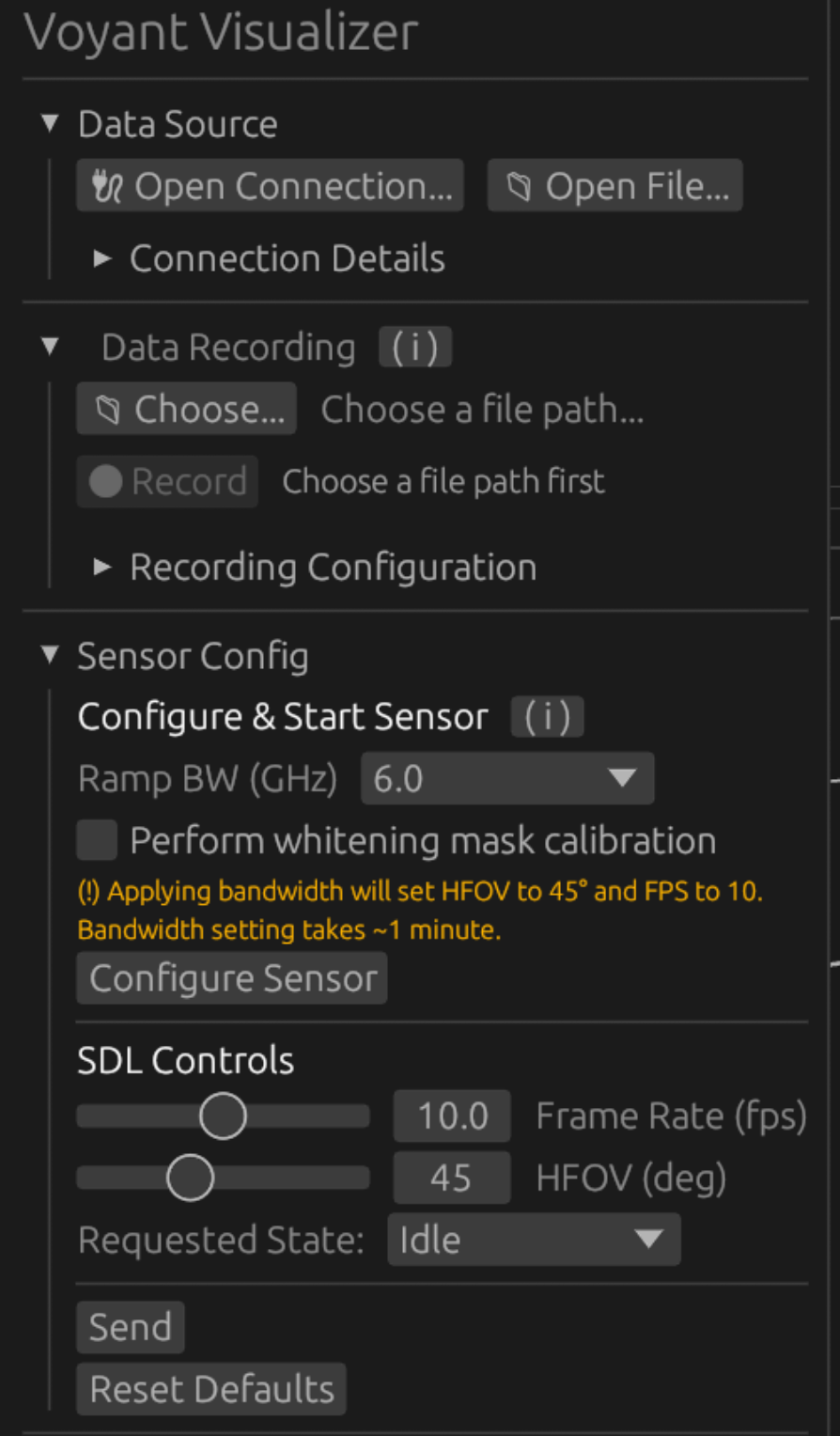
Additional interaction menus available when Carbon 30 sensor is connected.
Background Noise Calibration
Background-noise calibration suppresses the sensor’s internal noise so it does not appear as spurious points in the cloud. The Carbon 30 requires a background-noise calibration each time it powers on — run one before you start collecting data. Two buttons are available:
- Apply Default writes the built-in background-noise calibration for the connected sensor. It is quick (under 5 seconds) and is all most workflows need — do this first after every power-on.
- Refine — optional, but recommended for a cleaner cloud — sharpens the default mask from a live capture of the sensor’s own noise floor. The default handles typical background noise; refining tunes the suppression to what this sensor actually sees in its current environment — which shifts with temperature and nearby electromagnetic interference (EMI) — so it is most worthwhile when deploying in a new or electrically noisy location. Because it measures noise with no scene present, you must cover the sensor window before running it — clicking Refine opens a confirmation prompt asking whether the window is covered. It takes under 20 seconds and briefly cycles the sensor.
On success, the sensor enters PointCloud at the calibration configuration (45° HFOV / 10 fps / 6 GHz). As after any configuration change, the sensor settles for a while before it is at full measurement performance — see After Changing SDL Parameters.
Background-noise calibration is available only when a Carbon 30 sensor is connected and in the Idle state (applying SDL parameters, below, does not have this restriction). If the control link to the sensor is unreliable, an advisory appears and calibration is not recommended. Power-cycle the sensor (leaving the connection up) to restore the link; you may need to reconnect once it has finished booting.
SDL Parameters
Your Carbon 30 LiDAR sensor features Software Defined LiDAR (SDL) parameters that allow you to tailor the point cloud’s precision to your needs. Several customization settings are available to you, described in the SDL parameters guide.
SDL parameters are set in the SDL Controls panel and applied with the Send button.
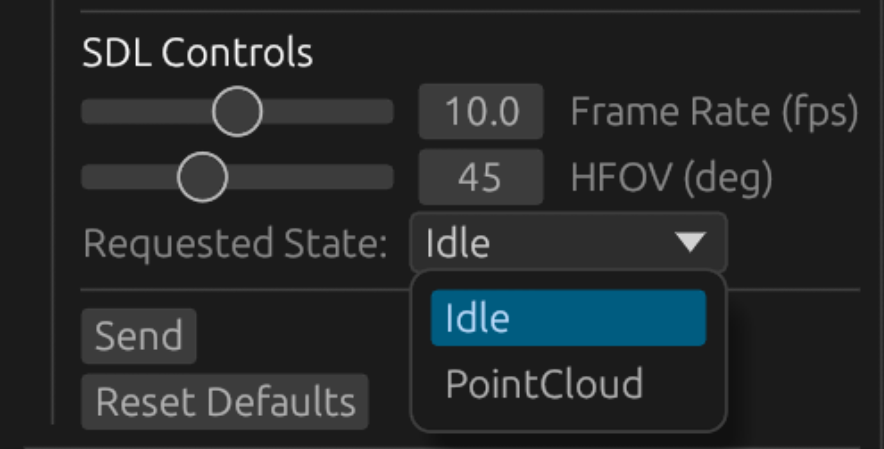
Sensor state selections to adjust and apply SDL parameters.
The Requested State menu switches the sensor between two modes:
- Idle — Sensor is ready, but not streaming data
- PointCloud — Sensor is streaming data
To apply new SDL parameters:
1. Adjust SDL Parameters to the desired values.
2. Set Requested State to PointCloud and click Send.
Unlike background-noise calibration, applying SDL parameters does not require the sensor to be in Idle — it applies the change and resumes streaming on its own. If successful, you’ll see Applied next to the Send button. A status message also appears there if the command is rejected (e.g. an invalid or unsupported combination). Note: not all SDL parameter combinations are supported.
Occasionally (less than 1% of sends), a valid, supported combination doesn’t take effect on the first try — a warning appears below the Send button. Just click Send again.
Record Data
With your Carbon 30 LiDAR sensor connected and streaming data, you can record and save the point cloud over time onto your machine.
To record a dataset:
1. Click Choose… to choose a file path on your machine to place the dataset.
- Choose a folder and title your
.vyntdataset to be created in the recording. - Select Save to return to the Voyant Visualizer.
- Note: Your chosen
.vyntfile name will now appear next to the Choose… button.
2. Set file settings and limits with Recording Configuration menu
- Toggle adding a timestamp to your recording file’s name (on by default)
- Toggle Overwrite existing files — off by default, so recording never replaces an existing file unless you confirm when asked
- Toggle and set Total limits across the whole recording session or Per-file limits that split the recording into numbered files, for values of:
◦ Number of frames recorded
◦ Duration of recording (s)
◦ File Size (MB)
3. Click the Record button when ready to begin saving frames to a dataset.
- The number of frames captured will be visible and updating live as the dataset is recorded.
- Click the Stop button when satisfied with the capture of your dataset.
- Your recording is now saved to your local machine.
Recording a Support Bundle (Diagnostic Mode)
When Voyant support asks for a diagnostic recording, check Diagnostic mode in the Open Connection… dialog when you connect (reconnect to change it — the setting is fixed for the life of a connection). In diagnostic mode:
- Frames keep invalid points (with their drop reasons) instead of filtering them out — the Drop Reason color mode then groups them by the stage that rejected them. Send the support bundle when the specific reasons matter.
- Recording additionally writes a raw-peaks sidecar file next to the recording, named after the recording as saved (
my_recording_<timestamp>_peaks.vyntwith timestamp naming on,my_recording_peaks.vyntwith it off). The sidecar honors the same overwrite decision as the recording. - Per-file splitting is disabled, so a capture is always one recording plus one sidecar. Total limits stay allowed.
Record as usual, then send both files to support. The sidecar holds the raw sensor peak stream for Voyant’s internal analysis — it cannot be opened for playback.
Sensor Health
When connected to a live Carbon 30 sensor, click the heart icon in the top-right corner to open the Sensor Health panel. It groups live status into collapsible sections (Device Info, Control Link, Time Sync, Health, SDL Config, Counters, Calibration, DSP Header).
The Control Link (a basic host → sensor connectivity check) and Time Sync (host↔FPGA clock alignment) sections are the quickest way to confirm a healthy live connection — see Confirm a Healthy Connection in the verification quick start for how to read them.
The Health section carries the laser-linearity readings, which report measurement readiness rather than connection health — see After Changing SDL Parameters.
In observer-only mode this client does not probe the control link or run time-sync — a primary client owns the sensor.
View and Interact with the Point Cloud
Whatever your data source, the Visualizer gives you the same tools to color, size, frame, and navigate the point cloud. This section walks through them.
Color Modes
Color modes allow you to visualize different aspects of the point cloud data.
Fifteen color modes are provided, each highlighting a specific property of the environment: the eight classic modes below, plus seven recorded-field modes that color by the per-point fields stored in every recording. An example of each of the classic colormaps on the same frame of the people_walking-v1_0_0.vynt dataset is shown alongside the explanations of each below.
You can switch modes using the dropdown menu or keyboard shortcuts 1–4:
1. Range Bands — Displays distance using repeating HSV color bands.
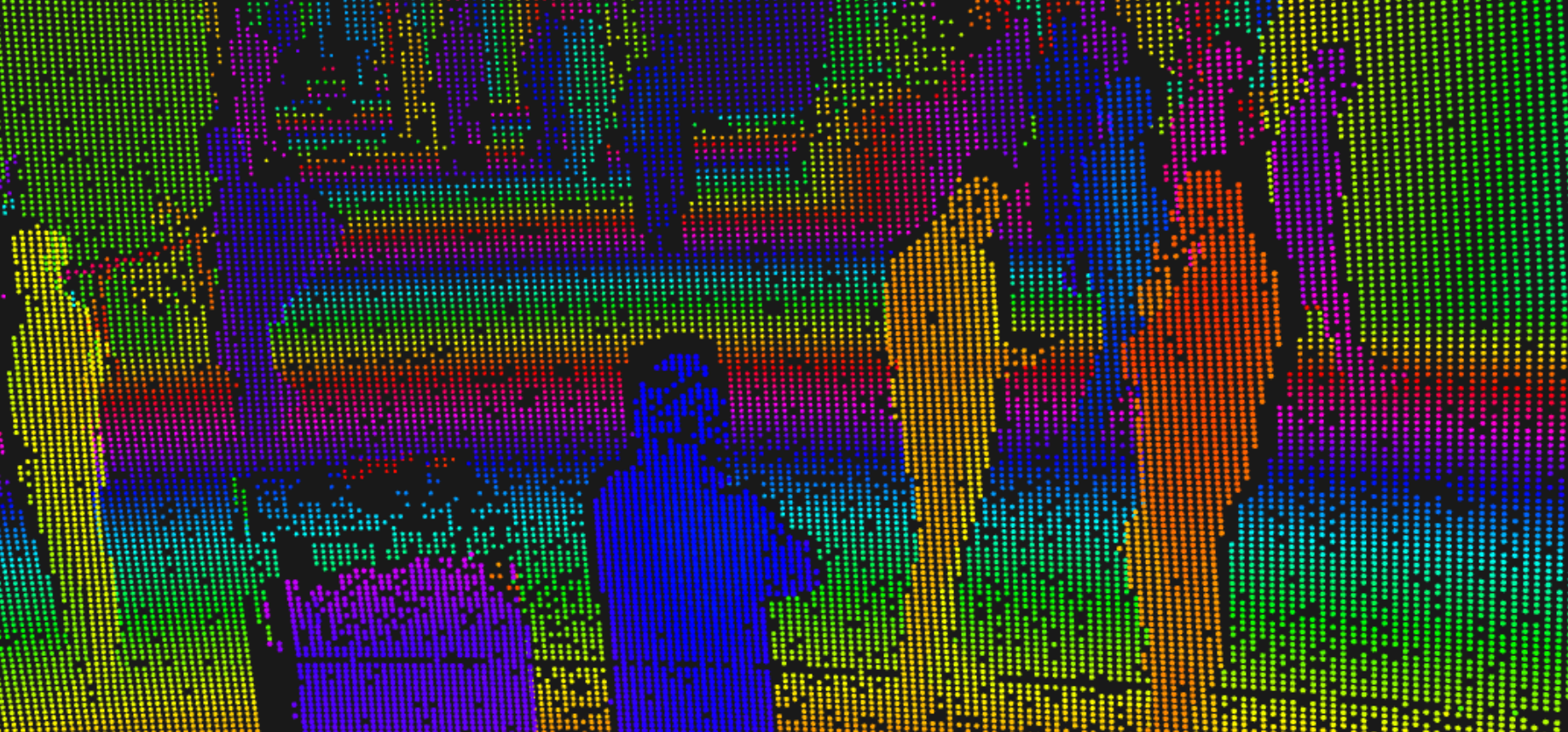
 Associated colorbar
- Helps identify spatial structure and depth
- Adjust band size with your desired distance range with the slider
2. Doppler — Displays the radial velocity of objects relative to the sensor
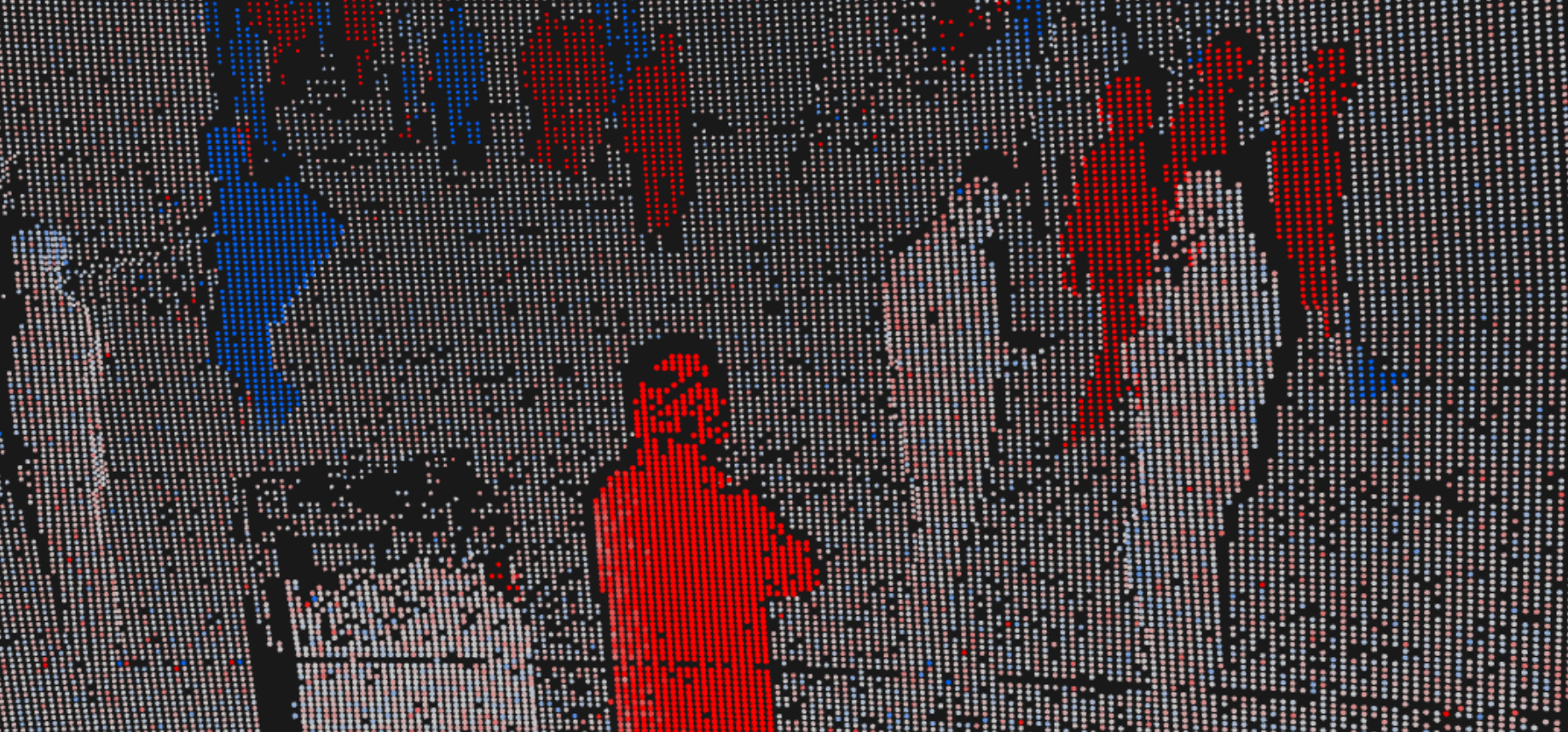
 Associated colorbar
- Red — Objects moving away from the sensor (positive radial velocity)
- Blue — Objects moving toward the sensor (negative radial velocity)
- White — Stationary objects (zero radial velocity)
- Use this view to identify moving objects and measure their radial velocity
3. SNR — Signal-to-Noise Ratio — Displays signal quality.
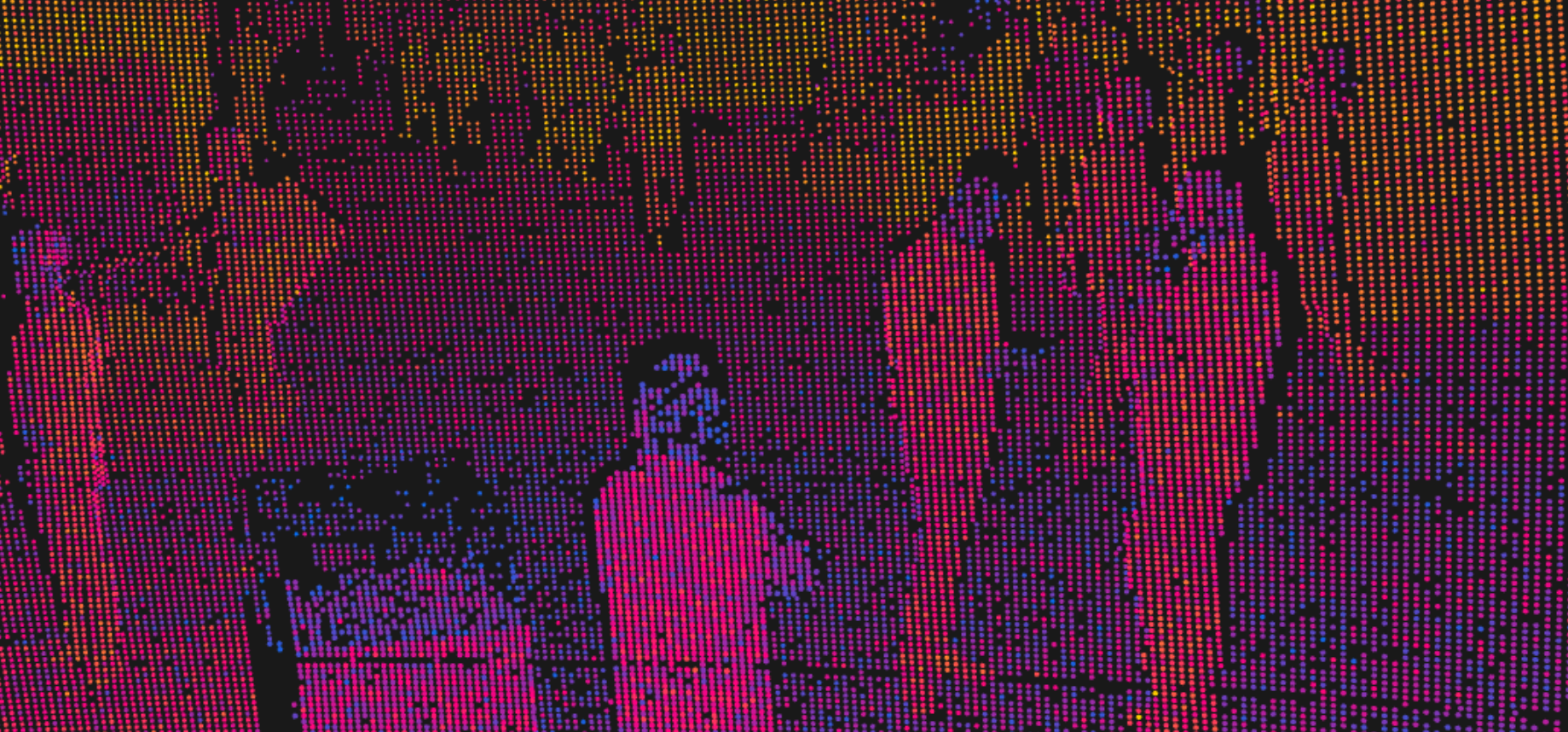
 Associated colorbar
- "Hotter" colors = higher values = stronger, clearer signal
- "Cooler" colors = lower values = noisier, weaker signals
- Visually identifies data quality and unreliable regions of point cloud
4. Reflectance — Displays calibrated reflectance of surfaces
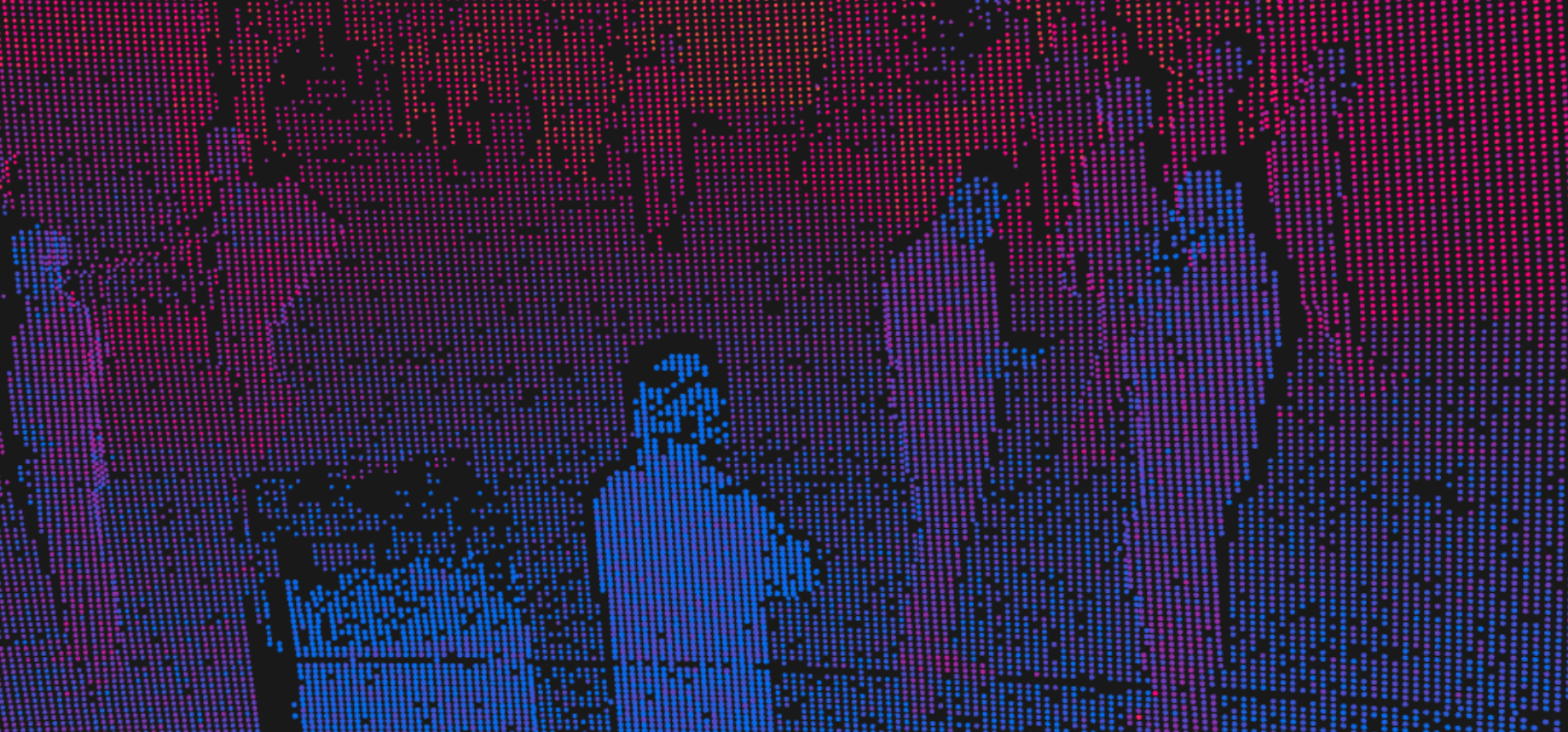
Associated colorbar
- "Hotter" colors = strong reflectance
- "Cooler" colors = weak reflectance
- Visually identifies materials with different surface properties
Additional modes (no keyboard shortcuts):
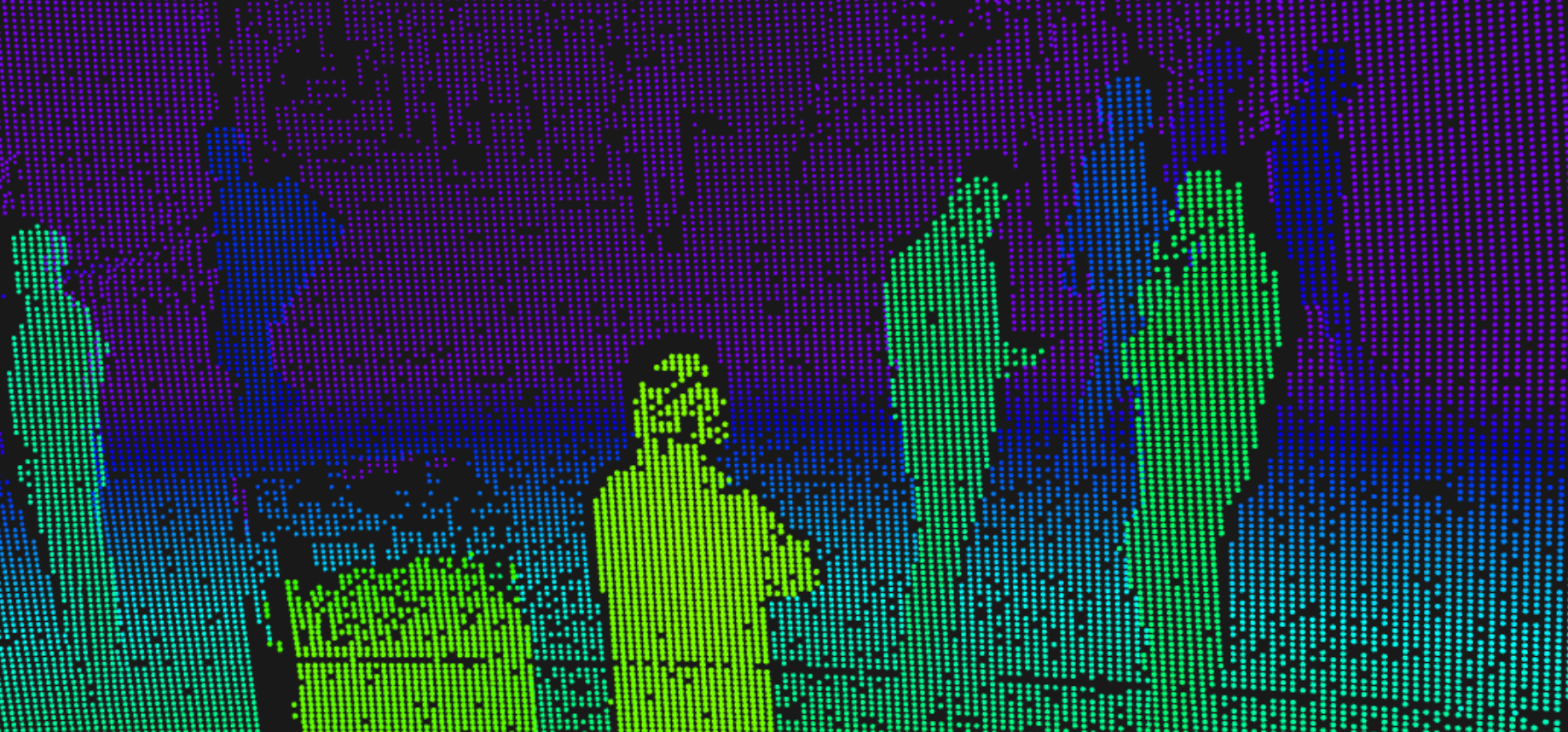
- X/Y/Z — Displays spatial coordinate values along each axis

 Associated colorbar
- X — forward/back
- Y — left/right
- Z — height
- Use to understand orientation and coordinate alignment of the point cloud
- Range (min/max) — Displays absolute distance from the sensor
 Associated colorbar
- Continuous gradient (no repeating like in Range Bands mode) between nearest and farthest data points
- Identifies distances between objects clearly
Recorded-field modes
The modes below the separator in the dropdown color by the per-point fields recorded in every .vynt file, for inspecting how the data was produced.
Three continuous ramps (their Min/Max sliders auto-range by default):
- Azimuth Index / Elevation Index — the point’s position in the scan grid. Useful for seeing scan-pattern structure and correlating points with the sensor’s field-of-view configuration.
- User Data — the user-owned per-point bytes, which your own tools can stamp when editing a recording. Zero (the default) until something writes them.
Four categorical modes, each with a color legend shown in the panel:
- Drop Reason — the pipeline stage that rejected a point; Valid points form the first band. Only invalid points carry a drop reason, so this mode pairs with Show invalid points (playback) or a diagnostic-mode connection (live).
- Combine Method — how the DSP combined the sensor’s raw peaks into this point.
- Channel — which of the sensor’s 8 channels produced the point.
- Switch — the sensor’s switch setting when the point was measured.
Rendering
- Use the Point Size (mm) slider to control the visibility of points in the point cloud.
- Set Point Style to choose the point shape: Round (default) or Square.
- This is purely a visual preference — both shapes cost the same to render, so it has no effect on performance.
- Toggle Mirror Mode with M to horizontally flip data (about the y-axis).
- Toggle Range Compensated Point Size with the adjustable scale factor to normalize the visibility of near and far points in the point cloud.
- Toggling on makes the data points look more visually consistent across the point cloud. When off, the points farther from the sensor appear smaller as the point cloud becomes less dense.
- Toggle Show invalid points to reveal the invalid points a diagnostic-mode capture recorded — an ordinary recording has none. Playback only; in live mode invalid-point visibility comes from the connection’s diagnostic mode, so the toggle is hidden.
Scene Elements
- Toggle origin and axes visibility with Show Axes
- Use the Axes Length (m) slider to set the length the axes extend from the origin.
- Toggle origin and radially spaced rings visibility with Range Rings
- Preset defines preconfigured spacing of the range rings with options:
- Auto — Rings at [0.5, 1, 5, 10, 25, 50, 100, 200] m
- Short Range — Rings at [0.5, 1, 2, 5, 10, 25] m
- Medium Range — Rings at [5, 10, 25, 50, 100] m
- Long Range — Rings at [10, 50, 100, 200, 500] m
- Custom — Rings at spacing of your choosing set with adjustable sliders on Spacing (m) and Max (m) distance bound
- Adjust Label Size (m) on each range ring with the slider.
- Preset defines preconfigured spacing of the range rings with options:
Camera
- View of the LiDAR point cloud using preset orientations: Rear Elevated (Default), Rear, Top-Down, Left, Right, Front
- Manipulate the view directly using the mouse.
- Left Mouse — Orbit = rotate around the point cloud
- Right Mouse — Pan = move left/right relative to the current view
- Scroll — Zoom = move closer to/farther away from the current view point
- Reset the view to the selected orientation by pressing the Reset Camera Position button or the C key
Frame Info
The Frame Info panel displays metadata for the current frame:
- Frame Index — Numerical position of the current frame in the stream or file
- Timestamp — Time of capture
- Point Count — Number of points in the current frame, after any invalid-point filtering
- Invalid points (points deemed too noisy to be a true return) are filtered out, unless kept by a diagnostic-mode connection or the playback Show invalid points toggle
- Point Cloud FPS — Incoming frame rate from the sensor or playback
- Points Per Second — Number of points in the point cloud per second
Point Picker
Click the Point Picker button in the top-right corner, then click any point in the cloud to inspect its recorded values — position, range, azimuth, elevation, radial velocity, SNR, reflectance, timestamp, scan-grid indices, drop reason, combine method, and user data. Enable the ruler toggle to pick a second point (labelled B) and read the A↔B distance plus a per-field diff. Picking works live and in playback; pause (Space) to study a single frame.
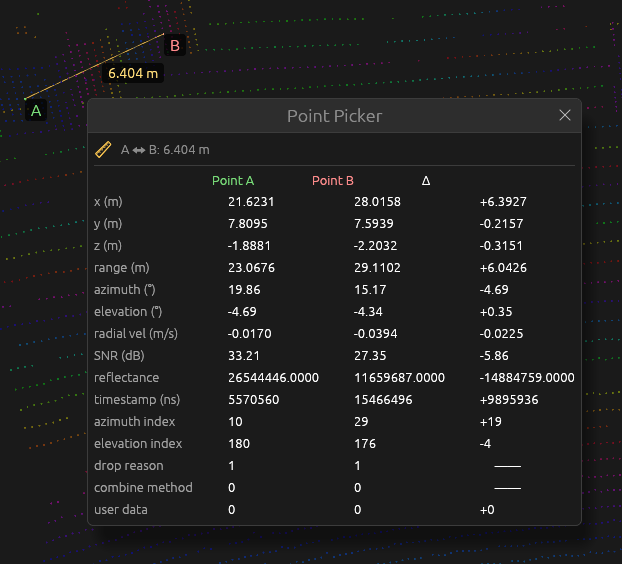
Example of a point picker measurement between two points.
Help and Shortcuts
Keyboard shortcuts for all controls are listed in the Help (Controls) panel at the bottom of the sidebar.