Quick Start: Verify Carbon 30 Connection
Quickly connect and access your Carbon 30 LiDAR sensor and its data with the Voyant Visualizer.
With correct installation and network connection, you are now ready to use the Voyant Visualizer with your Carbon 30 LiDAR sensor.
The following image labels relevant information on the visualizer and showcases some of its configurable features.
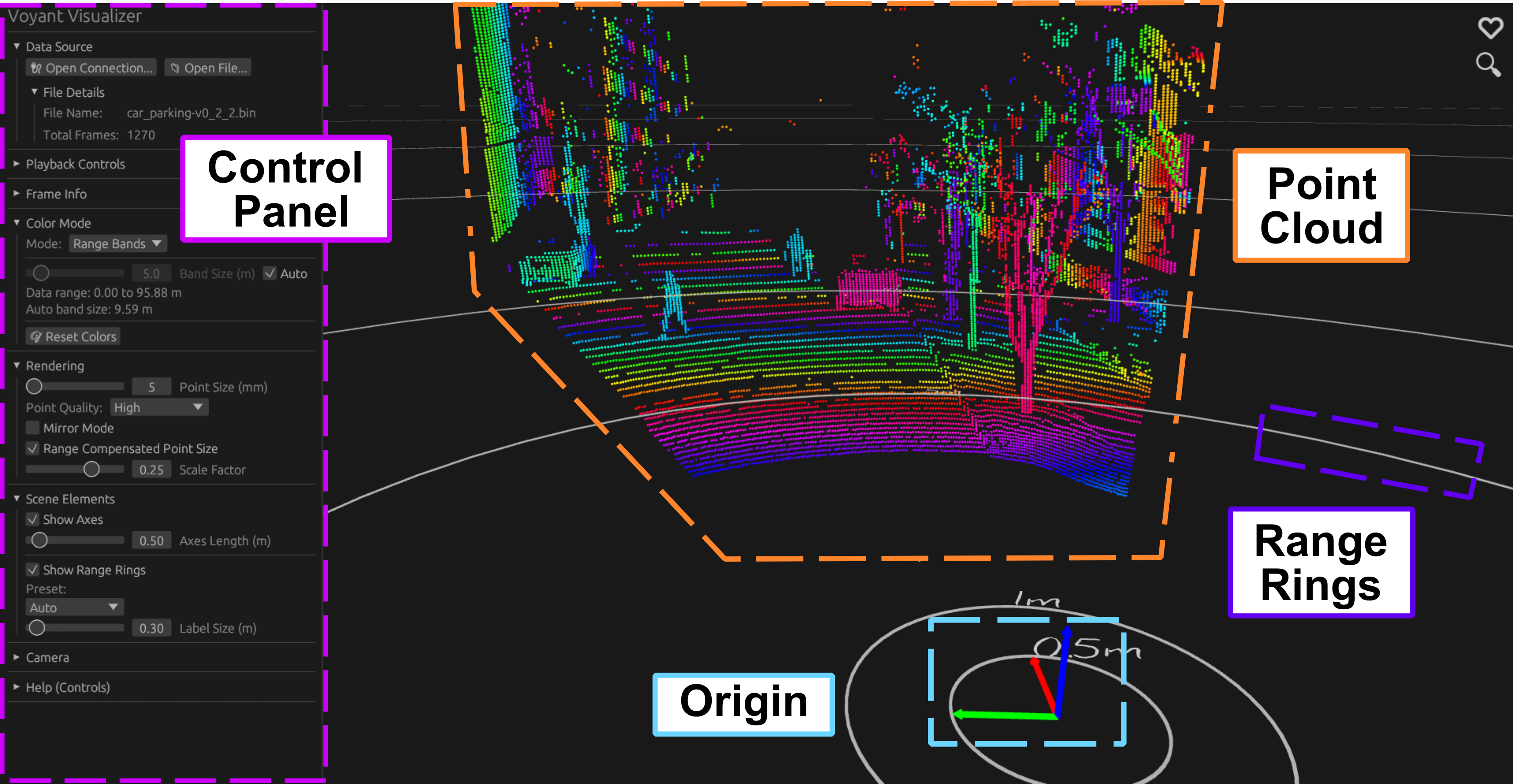
The Voyant Visualizer. Key attributes and features are highlighted. Data from car_parking-v0_2_2.bin dataset.
The following parts of this procedure walk you through loading pre-recorded or connecting live data, then interacting with and understanding its point cloud.
Data Sources
The Visualizer supports two ways to view data:
1. Playback (Open File): Load a previously recorded point cloud dataset.
2. Live Streaming (Open Connection): Connect directly to a Voyant sensor.
The Data Source panel at the top of the control panel on the left of your screen lets you choose between these options.
If you are using the Visualizer for the first time, it is recommended to start with a recorded dataset. Voyant provides two datasets for download in the Open File (Playback) subsection below.
1. Open File (Playback)
Playback mode allows you to explore previously recorded data.
Click Open File… and select a .bin recording.
You will need a Voyant .bin data file, either:
- Downloaded from available datasets associated with our latest format:
- car_parking-v0_2_2.bin (720 MB)
- people_walking-v0_2_2.bin (645 MB)
- Recorded from within the Visualizer.
Use the Playback Controls panel to play, pause, restart, adjust playback rate, loop, and scrub through frames using the progress slider. Note: the Space key can be used to toggle play/pause of data.
2. Open Live Connection
Live mode connects directly to a Carbon 30 LiDAR sensor.
Tip: Use Playback mode first to familiarize yourself with the Visualizer interface before connecting to live data.
Click Open Connection… to connect to a live sensor.
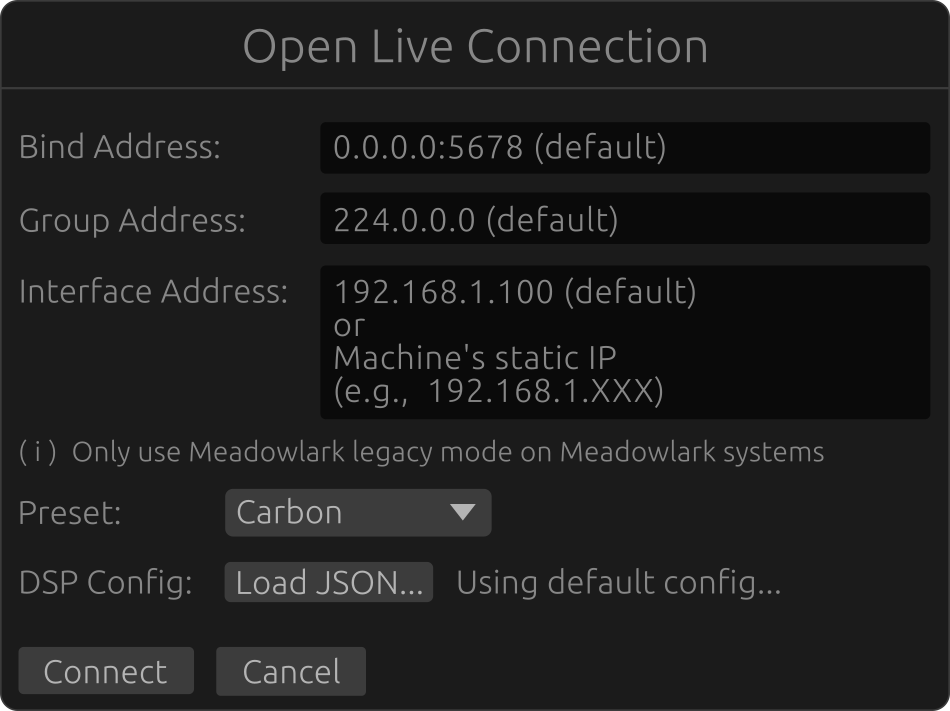
Example of properly configured Live Connection page.
The default settings work for most cases:
- Bind Address:
0.0.0.0:5678 - Group Address:
224.0.0.0 - Interface Address: default
192.168.1.100or Your machine’s static IP (e.g.192.168.1.XXX)
Maintain the Preset: Carbon setting for use with your Carbon 30 LiDAR sensor.
If you have a custom configuration for your environment, you can upload a JSON file in the DSP Config setting. This is optional, as the live connection is set with a default configuration.
When your settings are properly configured, click the Connect button to begin viewing live data from your Carbon 30 sensor.
Open the Connection Details menu to see the associated addresses of the Carbon 30 sensor that match those input when connecting.
✅ You have successfully started using your Carbon 30 LiDAR sensor with Voyant’s API and Visualizer!
Next, see the Voyant Visualizer Guide to learn more about how to begin interacting with the Voyant point clouds, including configuring Software Defined LiDAR (SDL) parameters, streaming and recording live data, visualizing different metrics of the point cloud, and saving raw files.