WSL Setup and Networking
They reflect the Meadowlark (Carbon dev kit) API and may not apply to Carbon systems.
Fully updated documentation will be published when Carbon Alpha ships in April 2026.
Questions? Reach out to us at: support@voyantphotonics.com
⚠️ Important: These instructions are for Windows 11 only. The required
mirrorednetworking mode is not supported on Windows 10.
This guide walks you through setting up a WSL (Windows Subsystem for Linux) environment, installing the voyant-api configuring static IP settings in Windows, and forwarding ports to allow external UDP traffic into your WSL instance.
🐧 Install WSL2 on Windows 11
- Open PowerShell as Administrator.
-
Run the following command to install WSL (WSL2 by default) and the default distribution (Ubuntu):
wsl --installSee How to install Linux on Windows with WSL for more information.
🔗 Enable Mirrored Networking
⚠️ This is the step that is only supported on Windows 11. See Mirrored mode networking for more information.
-
Press
Windows + Rand enter:notepad %USERPROFILE%\.wslconfig -
If the file doesn’t exist, choose to create it.
-
Add the following content:
[wsl2] networkingMode=mirrored -
Save the file (Ctrl + S).
🚀 Start WSL
Launch the Ubuntu (or other) app from the Start Menu.
📦 Install the Latest voyant-api Release
-
Download the latest
voyant-api-debian-*.tar.gzfrom voyant-sdk/releases/latest⚠️ Make sure you don’t have any previous release tarballs or
.debfiles in your Downloads folder before proceeding. -
Copy the tarball from your Windows Downloads folder into your WSL home directory:
cp /mnt/c/Users/<YOUR_USERNAME>/Downloads/voyant-api-debian-*.tar.gz .Replace
<YOUR_USERNAME>with your actual Windows user folder name. -
Extract and install the packages:
tar -xzf voyant-api-debian-*.tar.gz --one-top-level cd voyant-api-debian-*/ sudo apt update && sudo apt install ./voyant-api*$(dpkg --print-architecture).deb -
Verify your installation by running:
voyant_hello_worldYou should see something like:
Welcome to the Voyant Photonics, Inc. API!
You have successfully installed the voyant-api package with:
- Proto version: 0.2.1 (Proto)
- API version:   0.2.1 (API)
🌐 Set Up Ethernet Adapter (Static IP)
On your Windows machine, configure your Ethernet interface with a static IP that will be used for port forwarding. Select Edit on the IP assignment in your ethernet interface’s settings.
Example Settings:
- IP address:
192.168.20.100(This will be<YOUR_WINDOWS_STATIC_IP>below) - Subnet mask:
255.255.255.0 -
Gateway: (Leave blank)
-
Ethernet adapter not connected / interface details
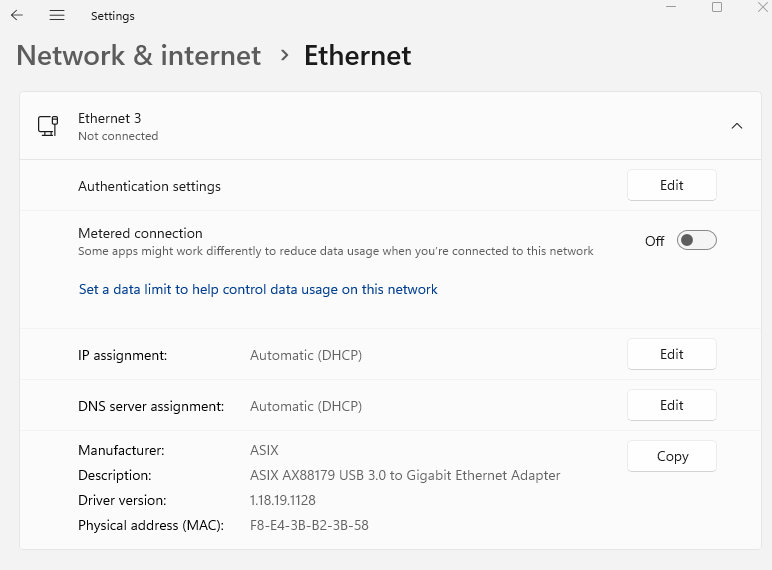
-
Static IP configuration dialog (Manual)
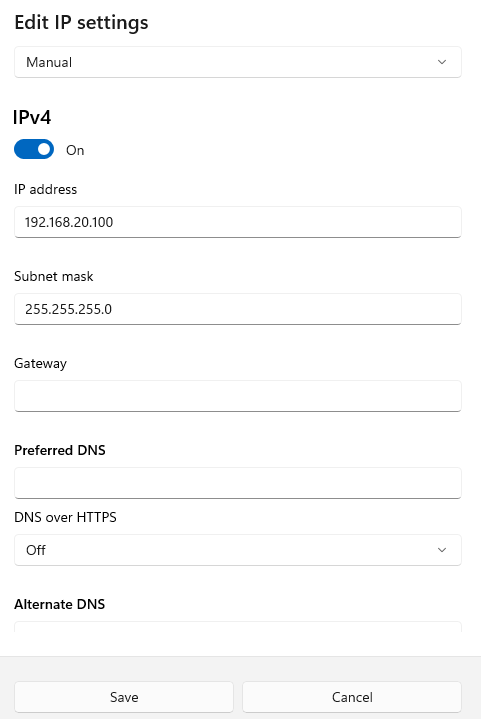
-
Confirmation of manual IP set
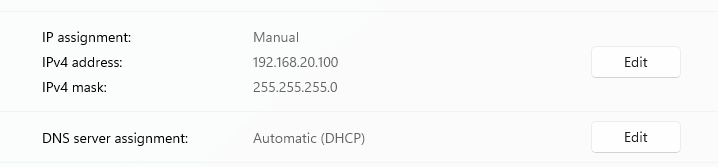
You can now ping your device in both a PowerShell and a WSL terminal with:
ping 192.168.20.20
🔍 Get Your WSL IP Address
In your WSL terminal, run:
ip addr show eth0
Look for an IP address in the format 172.x.x.x (e.g., 172.22.147.139). This is your WSL instance’s internal IP address (<YOUR_WSL_IP>).
🔀 Set Up Port Forwarding (UDP)
Forward UDP port 4444 from Windows to your WSL instance.
- Open PowerShell as Administrator.
-
Run the following command:
netsh interface portproxy add v4tov4 listenport=4444 listenaddress=<YOUR_WINDOWS_STATIC_IP> connectport=4444 connectaddress=<YOUR_WSL_IP>Replace:
<YOUR_WINDOWS_STATIC_IP>→ your Windows static IP (Likely192.168.20.100)<YOUR_WSL_IP>→ your WSL internal IP (172.x.x.xfrom previous step)
🔓 Allow UDP Through Windows Firewall
Run this command to allow UDP port 4444 through the firewall:
netsh advfirewall firewall add rule name="WSL UDP 4444" dir=in action=allow protocol=UDP localport=4444
🛠️ Troubleshooting
If you see the following error:
Error: No such device (os error 19)
then you are failing to open the UDP socket. This means the port forwarding / firewall is not properly configured.
First try restarting the WSL instance by shutting it down:
wsl --shutdown
and relaunch your WSL instance.
If this doesn’t work, evaluate your networking configuration and reach out to us at Troubleshooting Guide.
✅ Next steps
You are now setup to run the voyant-api through WSL. Please refer to the latter half of the Quickstart Guide to start your sensor, visualize point cloud data, record data, etc.